Can’t log in? Let’s sort it
Need help with MFA or getting back into your account? You’re not alone. We've got you.
Setting up MFA for the first time? Follow along:
Type in your email address and password.
You'll see a screen asking you to set up multi-factor authentication.
Already got one? Skip ahead!
Open the App Store or Google Play, on your phone.
Search "authenticator".
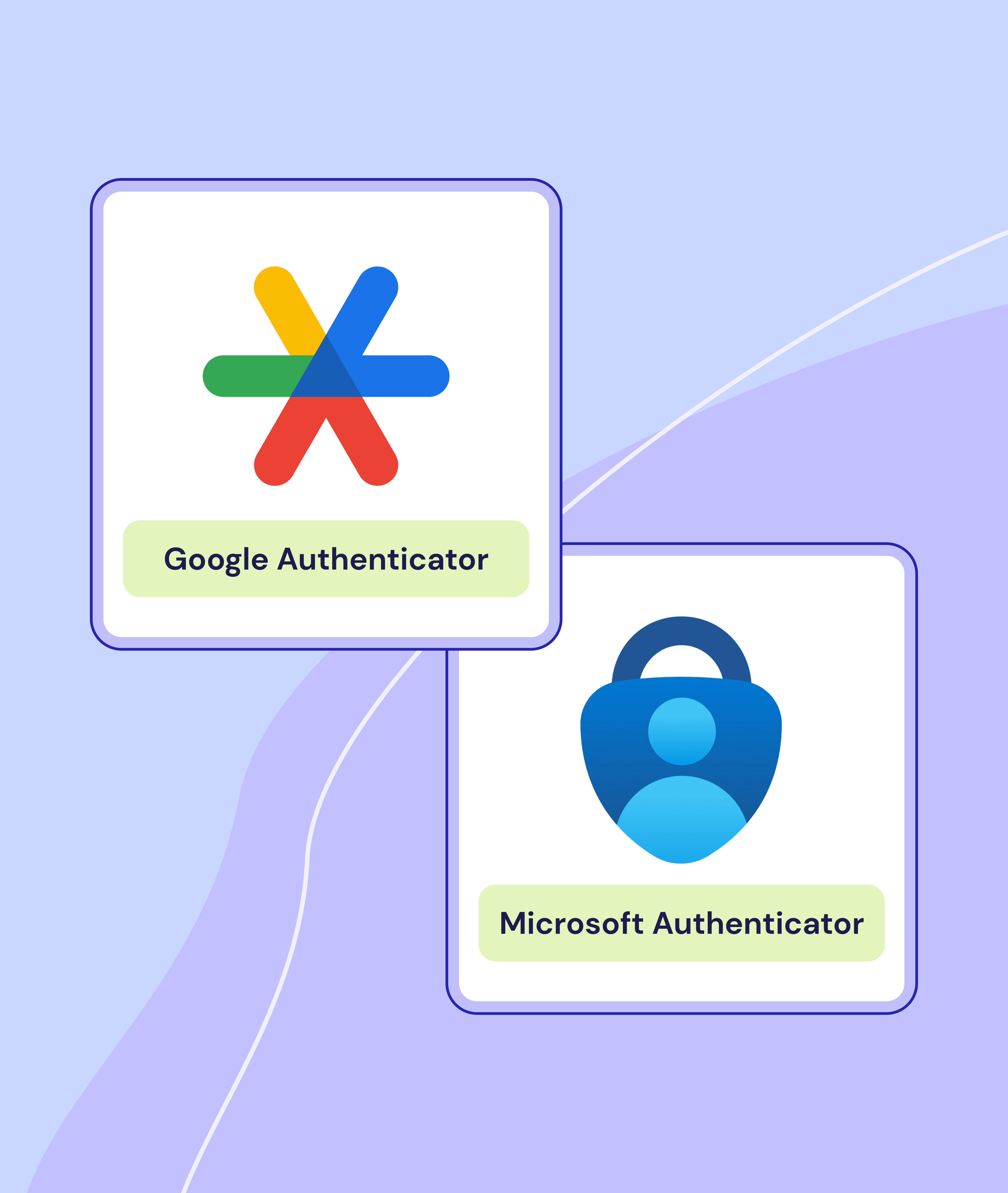
Download Microsoft Authenticator or Google Authenticator (both free and reliable).
💡 Can't use your phone? Browser extensions work too.
On desktop:
Tap the + or QR button in your authenticator mobile app.
Scan the QR code on the Verve website.
Your 6-digit code will appear on the app, and refresh every 30 seconds.
On mobile:
Scroll past the QR code and tap “Still having trouble?”
Tap the + in your authenticator app.
Add your account name (Verve super) and secret key manually.
Hit "Finish" and your code will appear.
💡Different app? Look for their version of the ‘+’ or ‘Add account’ button.
Type the 6-digit one-time code from your app into the Verve website.
Click "Verify".
Welcome to your Verve Super member online account!
From now on, you’ll just need your email, password, and the new 6-digit code from your app when you log in.
💡 Code not working? It may have timed out. Wait for a new one and try again.
How to set up MFA for the first time
Step 1 — Pop your details into the Verve login page. You'll land on a screen to set up multi-factor authentication (MFA for short).
Step 2 — Download a free authenticator app from your app store.
Step 3 — Add Verve to your Authenticator app:
Using Microsoft Authenticator? Tap the '+' and scan the QR code on your screen. Done!
Different app? Look for the '+' or 'Add account' option (they all work pretty much the same way).
Can't scan? No dramas. Click 'Can't scan? Try this' for a code you can type in manually.
Hit 'Continue' once you're paired up.
You'll see a 6-digit code that refreshes every 30 seconds. This 'one-time code' can only be used once, and you'll need to go to your app for a new code every time you log in.
Step 4 — Type that 6-digit code into the Verve website and hit 'Verify'.
Boom! You're in. Welcome to your account.
Choosing an authenticator app
Authenticator apps generate secure one-time codes (even when you’re offline). Pick one you trust, we’ll work with most of the common ones.
Any app that gives you a 6-digit code will work, but we reckon Microsoft Authenticator is a solid choice.
Grab it free from the Google Play Store (for Android devices) or App Store (for iPhone and iOS devices).
Google Authenticator works great too, and is also free.
Fun fact: Got an iPhone running iOS 15 or later? Your phone's built-in Passwords feature has you covered under 'Codes'. Some password managers have authenticators built right in too.
Not into mobile apps? All good
We get it. Here are your alternatives:
Desktop authenticator programs: These can be installed directly on your computer and function the same way as mobile apps.
Browser-based authenticator extensions: Many browsers (Chrome, Edge, Firefox) support extensions that can store your MFA codes securely and generate passcodes when needed.
Why can’t you just text me a code?
Fair question! Here's the thing: phishing texts and emails are having a moment (and not in a good way). In May 2023, the federal regulator APRA released new security advice, saying authenticator apps are the way to go.
The most up-to-date advice is to move away from SMS and email authentication and towards more secure methods such as authenticator apps or software (as advised by the Australian Cyber Security Centre).
Think of it this way: we're protecting your retirement savings with the same tech that banks use. Because your future deserves a high level of security.
What is a one-time code?
It's a 6-digit code (sometimes called an OTP, or one-time password) that only works once and expires in about 30 seconds. Even if someone somehow got your password, they'd still need this code to get in. It's your account's bodyguard to double-check it’s really you.
Think of it like a single-use key. Once you use it, it’s gone.
Why do we use it?
Your super is your money for the future and protecting it is serious business. Your one-time code helps keep your account safe as it's an extra layer of protection on top of your password.
Seeing “invalid code”? You’re not alone.
Your browser might be holding onto old data like it's precious cargo. Here's the fix: Clear your browser cache and try again. Each browser does this differently, so check out their help pages:
Other quick fixes:
Got a new phone?
Lost your phone or upgraded to the latest model? Authenticators don't always make the move with you (they're security conscious like that).
No stress. Just get in touch with our support team and we'll reset your MFA after checking it's really you.
Pro tip: Microsoft Authenticator has cloud backup if you're still signed in. Check your old phone before you recycle it!
Multiple apps causing chaos?
If you've set up Verve in more than one authenticator app, only one will actually work.
Search 'authenticator' in your apps to see if you've got more than one. Try each one to find your winner, then delete the old ones to avoid future confusion.
If you are resetting your MFA, please delete the old Verve account in your app before setting it up again.
Code not working?
Our system only accepts 6-digit codes. If your app's being extra and giving you more (or less), you'll need to check your app settings or try a different one.
Tips to keep MFA running smoothly
MFA can feel a bit tricky sometimes, but it’s there to keep your money and account safe. It is also the recommended security practice from the federal regulator for superannuation funds.
Here are some tips to set you up for success:
We're here for you. Seriously, don't hesitate to reach out.
Hit us up at hello@vervesuper.com.au or call 1300 799 482